Scientific WorkPlace Installation Guide
The below guide is intended for EUI members [1] installing Scientific WorkPlace (SWP from now onwards) on their personally-owned PCs and/or EUI laptops. Screenshots are taken from XP Professional thus may slightly differ form other versions:
- You must have full Administrator rights on your computer;
- You must provide yourself with a copy of the Welcome DVD or the SWP CD;
- You must have a valid temporary Serial Number [2];
- You must have a valid EUI e-mail address;
- You must have an active internet connection.
-
Login to the computer on which the software is to be installed as a user with Administrator rights;
-
Uninstall any previous versions of the software by using Add/Remove Programs (Programs and Features on Windows Vista and 7) from the Control Panel;
-
It is advisable as well to close all other applications before proceeding;
-
Insert the Welcome DVD and/or the SWP CD into your disk drive and wait for the menu to appear: click on Scientific Workplace and wait for the “Installation Setup” window to appear.
Please Note: if the window does not appear automatically, open My Computer, double-click on the CD/DVD drive and double-click on WelcomeDVD.exe or SETUP.EXE;
-
When the Serial Number is requested, type in the temporary Serial Number (something like 408-E0600-xxxxx-xxxxx-xxxxx ) provided by the ICT, then click on the “Install” button:
Figure 1. Installation Setup window
-
When the “Welcome to the InstallShield Wizard” window appears, click “Next”;
-
When the “Customer Information” window appears, be sure to correctly provide the following data then click the “Next” button to proceed:
User Name = Your_first_name Your_last_name (e.g. John Smith)
Company Name = E.U.I.
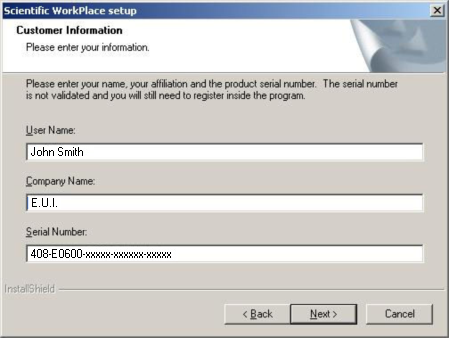
Figure 2. Customer Information window
-
When the “Choose Destination Location” window appears, it is suggested to confirm the default installation folder. In any case, do NOT choose a folder containing spaces in it (e.g.: do NOT use C:\Program Files):
C:\swp55
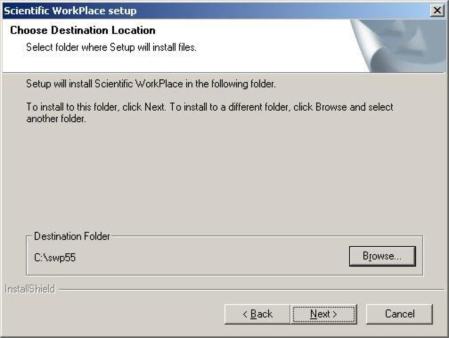
Figure 3. Choose Destination Location window
-
When the “Setup Type” window appears, tick Complete and click “Next”:
Figure 4. Select Type window
-
When the “Select Program Folder” window appears, click “Next” ;
-
The files will now be copied onto your hard disk: please wait a few minutes until the installation is complete;
-
When the installation is complete, you will be asked to register the software: click “No” :
Figure 5. Register window
-
When the “Scientific WorkPlace Installation Complete” window appears, choose “Yes, I want to restart my computer now”, then click “Finish” to complete the installation:
WARNING: your PC will be re-booted: save any open documents and files first!
Figure 6. Scientific WorkPlace Installation Complete window
The installation procedure is now complete but in order to activate all features of the software you still need to register it.
Please Note: on Windows Vista and 7, when starting SWP you may get a "Failed to update system registry. Need permission to add?" error message. This error is NOT related with the registration of the software. Check Known Issues for further details on this topic.
The first time you start Scientific WorkPlace you may be warned that you need to register the software in order to get all the features to work correctly: simply click on “OK” to continue:
Figure 7. System Registration window
In order to register the software you will need to be connected to the internet and to provide a valid EUI e-mail address as per pre-requisites.
Follow the steps below to obtain a Personal Serial Number and be able to register your copy of the software:
-
After restarting your computer, login with a user having Administrator rights;
-
Run SWP from Start Menu > Programs > Scientific WorkPlace 5.5;
-
From the menu on the top, choose Help > Register;
-
Select “By an automated web service” and click “Next” :
Figure 8. Register window
-
Check carefully that your personal data is correct and provide a valid EUI e-mail address then click “OK” to proceed.
Please Note: this will be the address to which your Personal Serial Number (in the form of a Personal License File) will be sent to.
IMPORTANT: do NOT use a non-EUI e-mail address such as from other institution or GMail!
Figure 9. Registration Information
-
You will be shown the License Agreement for this software: select “I accept this agreement” and click “OK” :
Figure 10. License agreement
-
In the following window, click on “Register Now” to proceed:
Figure 11. Automated Registration status window
-
The software will now try to connect to the site license administrator via a dedicated registration server. If the registration is successful, it will return with the following message:
Your license file has been sent to your site license administrator ([email protected]) who will forward it to you once he or she has verified you are a member of the site.
Figure 12. Order window
-
Within the next 24 hours you should receive an e-mail from T-Stat s.r.l. (official italian distributor of SWP)with further instructions and your Personal License File: please check the e-mail address you used to register the product in step 18.
If you did not receive the e-mail whithin 24 hours, check first your Junk mail/Spam folder for any mail coming from the address [email protected] before contacting the IT User Support.
IMPORTANT: the serial number you received will work exclusively for the computer and name you registered with. It will NOT work on any other computer. If you want to install SWP on several computers, you will need to run the registration process on each of them!
Please Note: be sure to keep the e-mail with the Personal License File in a safe place: you might need it to re-install the software on your computer in future!
-
Close SWP if it is currently running;
-
Save the attached LICENSE.LIC file into the Licenses subfolder inside your SWP installation folder (if you followed all steps above, typically C:\swp55\Licenses), making sure to overwrite any existing one;
IMPORTANT: be sure NOT to save the file as Notepad/.TXT file type but instead select All files (*.*) in the "Save as file type" field and verify that the .lic extension is visible in the "File name" field as to read license.lic:
Figure 13. Save Attachment window
-
Restart your computer, then start SWP as usual. To verify the registration, from the menu on the top choose Help > System Features. The software is correctly registered if you can read Available in the bottom field of the System Features window:
Figure 14. System Features window
WARNING: the SWP license is usually valid for 1 year from the time of installation: you will need to renew it once it has expired. Pick up a new temporary Serial Number from the ICT [2] and proceed with the License Renewal instructions further below to renew an already installed copy of SWP.
Please Note: we strongly suggest to schedule your Outlook/OWA Calendar a few days before the expiration of the license to have enough time to renew it. You can check how many days you have left by accessing System Features and by scrolling down the bottom field to its end:
Figure 15. System Features, days left before license expiration
-
Start SWP as usual and from the menu on the top, choose Help > System Features. Click on "Change Serial Number" and enter the new temporary Serial Number provided by the ICT [2] followed by "OK" :
Figure 17. Entering new temporary serial number
-
Repeat steps 14 to 24 to complete the registration process.
For any installation problem, please contact Portable Device Support.
For any problem in registering the software, please contact your local IT User Support Office (Site Office).
= The software is available to Researchers, Fellows, Academic and Administrative Staff. It is not available to Alumni, Partners and Visitors.
= Provided by ICT Secretary, your local IT User Support Office (Site Office) or Portable Device Support's main Badia desk.
Page last updated on 20 August 2017